Google Sheets
Workspace Plan Only
The Google Sheets integration is available exclusively to Workspace plan users.
The Google Sheets node allows your workflows to insert new rows into a Google Sheet using data generated from previous nodes.
Each execution appends data to the next available empty row—perfect for logging results, form submissions, or workflow output.
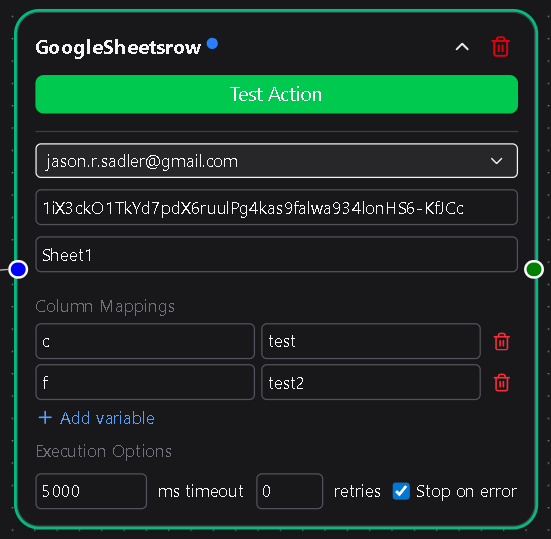
Overview
This node connects directly to Google Sheets through an OAuth integration. Once connected, DSentr can write data automatically to your chosen spreadsheet and worksheet.
Every run appends a new row rather than overwriting existing data, ensuring each workflow result is preserved chronologically.
Configuration
OAuth Account
Select a Google personal or workspace account authorized in Settings → Integrations.
This connection must have spreadsheet editing permissions granted during the Google OAuth flow.
Required
Spreadsheet ID
The unique identifier of the target spreadsheet.
You can find it in your spreadsheet’s URL between /d/ and /edit.
Example:
https://docs.google.com/spreadsheets/d/1ABC123xyz456def7890/edit → ID = 1ABC123xyz456def7890
The spreadsheet must be owned by, or shared with, the connected OAuth account.
Required
Worksheet Name
The name of the sheet (tab) inside the spreadsheet where rows will be inserted.
Required
Column Mappings
Define what data is written to which columns.
Each mapping consists of a lowercase column letter (e.g. a, b, c) and a value or variable.
Example:
a→testb→{{trigger.name}}c→{{action.result}}
At least one valid mapping is required.
Values can be static text or dynamic variables from previous workflow nodes.
Behavior
Each time the node runs, DSentr appends the specified values to the next empty row in the target worksheet.
Existing rows are never modified, regardless of which columns are mapped.
Changing the mappings later only affects which columns receive data—not where the next row is placed.
This ensures your data remains orderly, consistent, and predictable across workflow runs.
Important Notes About Editing Your Sheet
Google Sheets treats cleared rows, deleted rows, and formatted rows differently.
This affects where DSentr appends new data.
When using the Google Sheets action node:
- DSentr always appends to the next empty row as Google Sheets defines it, not necessarily the first row that looks empty.
- Clearing the contents of a row does not make it empty.
Sheets still counts it as part of the data range if it contains formatting, merged cells, or hidden metadata. - Deleting a row does shift the sheet upward.
The next append will happen at the new bottom of the sheet. - Structural changes such as moving columns, inserting rows, or applying formatting to large row ranges can cause Google Sheets to reinterpret the “data region,” which influences where new rows land.
Recommended Practice
To keep workflow inserts predictable:
- Avoid clearing rows in the middle of the sheet. Delete them instead.
- Avoid moving or restructuring columns after a workflow depends on a specific layout.
- Avoid merged cells, conditional formatting applied to entire rows, or special formatting that spans many rows.
- Keep automated sheets simple so Google’s append behavior stays consistent.
These practices ensure that DSentr’s row appends occur exactly where you expect, even as the sheet grows over time.
OAuth Permissions
During OAuth setup in Settings → Integrations, Google prompts for permissions that allow DSentr to view and edit spreadsheets.
You must check this box when connecting your account—without it, DSentr cannot write data.

Google Workspace Setup
Your Google Workspace must permit API access to Sheets for connected third-party apps.
If the Sheets node fails to write data, confirm with your workspace administrator that:
- Google Sheets API is enabled.
- The DSentr OAuth client is approved under App Access Control.
For more details:
Enable the Google Sheets API ›
Manage App Access in Google Workspace ›
Example
| A | B | C |
|---|---|---|
| test | {{trigger.name}} | {{action.result}} |
| test | John | Success |
Each workflow run adds a new row automatically, preserving previous entries.
Tips
- If multiple workflow runs write to the same sheet simultaneously, Google’s API ensures atomic inserts—but near-simultaneous runs may appear out of order.
- For guaranteed sequence ordering, add a timestamp column or serialize executions.
- Keep your OAuth connections active; expired tokens will cause write failures.
- To write to multiple worksheets, use separate nodes or dynamic worksheet names.
The Google Sheets node makes it simple to store structured workflow data where your team already works—right inside Google Workspace.