Nodes Overview
Workflows in DSentr are composed of three main node types — Trigger, Action, and Condition.
Each type serves a distinct purpose in defining how data flows and when each step executes.
1. Trigger nodes
A Trigger Node starts a workflow.
It defines when and how the workflow begins and provides the first set of variables that other nodes can use.
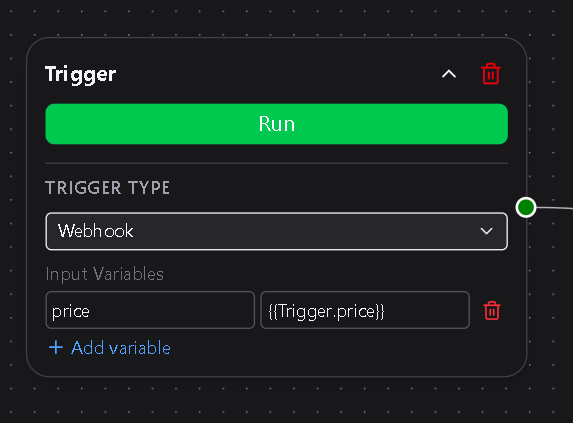
Trigger types
| Type | Description |
|---|---|
| Manual | Executes when you click Run in the editor or dashboard. Useful for testing or one-off executions. |
| Webhook | Starts automatically when an HTTP POST request is received at the workflow’s unique webhook URL. Common for app integrations and API-driven automations. |
| Schedule | Runs on a time interval. Available only on Workspace plans. |
Triggers do not accept inputs from other nodes.
They emit initial variables (for example, webhook payload data or timestamps from a scheduled run) that downstream nodes can reference using expressions like {{trigger.message}} or {{trigger.timestamp}}.
In short: Triggers create the starting variable set for the entire workflow.
See Triggers for detailed configuration options.
2. Action nodes
An Action Node performs a task — sending data, calling an API, or updating a system.
Actions can reference variables introduced by previous nodes, including triggers and other actions.
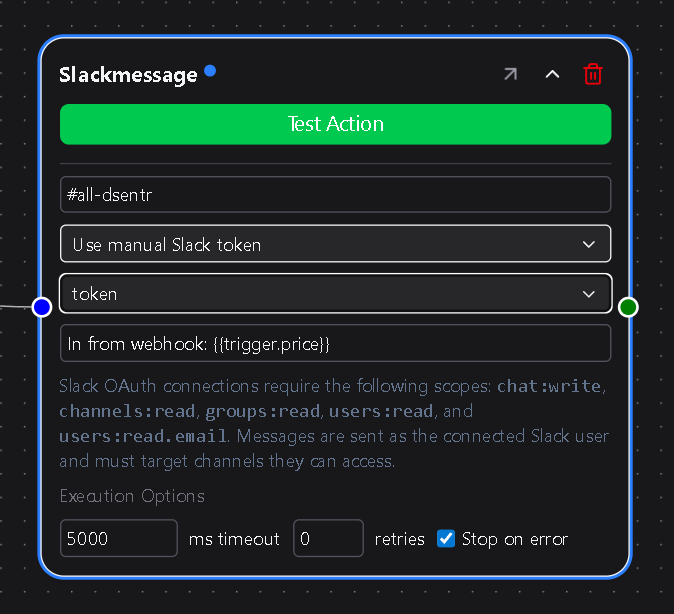
Action nodes vary in how they handle data:
- Some accept inputs and map them to fields (for example, message text or spreadsheet columns).
- Others run independently with only static configuration.
- Not every action produces an output, but any explicitly defined outputs (like a response body or status) become available as variables for later nodes.
Variables from triggers and earlier actions automatically remain in scope for downstream nodes.
Examples:
- Slack Message — Sends a message to a channel.
- Google Sheets Insert Row — Adds a new row using mapped column values.
- Email Send — Sends an email through a connected service.
See Actions for more on configuration and available action types.
3. Condition nodes
A Condition Node controls workflow logic.
It evaluates an expression using existing variables and determines which branch of the workflow should continue.
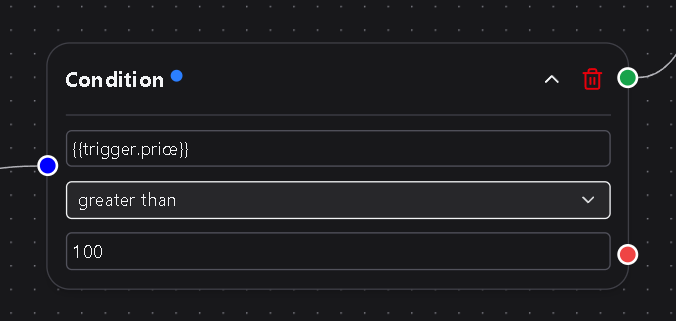
Condition nodes:
- Do not receive standard inputs or produce outputs.
- Evaluate using the variables currently in scope.
- Pass those variables forward unchanged along either the True or False branch.
Example:
{{trigger.amount > 100}}
If the condition evaluates to true, DSentr follows the Yes path.
If false, it follows the No path.
Both branches carry the same variable context forward.
4. Variable flow
Variables define the shared data context across all nodes in a workflow.
- Trigger nodes introduce the initial variables.
- Action nodes can reference and extend that set with explicitly defined outputs.
- Condition nodes do not modify variables; they only determine the next path.
All variables remain available until the workflow completes execution.
Referencing variables
Variables are referenced using the format:
{{node_name.variable_name}}
- The node name portion is always lowercase, regardless of how the node is labeled in the UI.
- Example: if a trigger node is named
InitialTrigger, reference its variable as{{initialtrigger.price}}.
- Example: if a trigger node is named
- The variable name portion must match its original case exactly.
Webhook trigger variables
Webhook triggers can receive data in the body of the incoming HTTP request.
For example:
curl -X POST -H "Content-Type: application/json" \
-d '{"message": "Hello from DSentr"}' \
https://api.dsentr.com/api/workflows/<workflow-id>/trigger/<token>
This creates a variable message in scope.
To make it available to the rest of the workflow, the webhook trigger must reference itself in its Input Variables field using the same case as its node name:
{{WebhookTrigger.message}}
This tells DSentr to pass the incoming payload value (message) forward as part of the trigger’s output.
All downstream nodes can then access that variable in the standard way:
{{webhooktrigger.message}}
This self-reference step is required only for Webhook Triggers.
All other triggers automatically provide their variables to downstream nodes without additional configuration.
5. Renaming a node
Nodes can be renamed by double clicking on the top area where the node's name is located and entering a new name. You must save the workflow for the new name to take effect. Keep in mind that any templated variables that are already present in the workflow may need to be adjusted to continue functioning as intended.
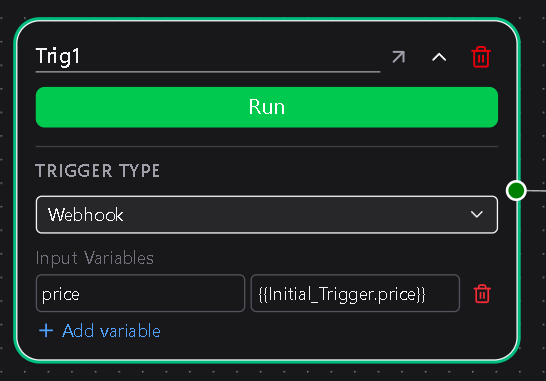
Node flyout menu
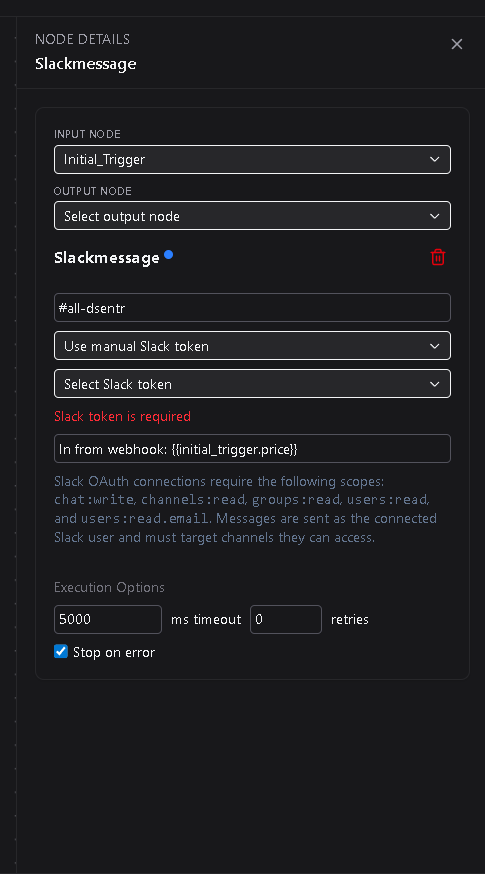
When you hover over any node on the canvas, an icon appears in the top-right corner of the node.
Clicking this icon opens the flyout menu, which lets you edit the node in a side panel instead of directly on the canvas.
The flyout provides the same configuration options as in-place editing but gives you more space for larger forms, variable mapping, or reviewing complex nodes without crowding the workflow view.
Use whichever mode feels faster — both update the node instantly and stay in sync.

Deleting a node
If you no longer need a node on your workflow, use the delete button on the node to remove the node from the canvas.
