Delay
The Delay node pauses a workflow for a defined period of time or until a specific future date and time.
Use it to space out actions, schedule follow-ups, or create controlled waits before continuing execution.
Overview
This node lets you control exactly when the next step in a workflow should run.
You can either wait for a relative duration (for example 1 hour, 10 minutes) or wait until an exact datetime chosen by the user.
It is ideal for scheduled follow-ups, retry spacing, and long-running sequences that should not block the engine.
Configuration
Mode
Determines which type of delay will be applied.
Choose from:
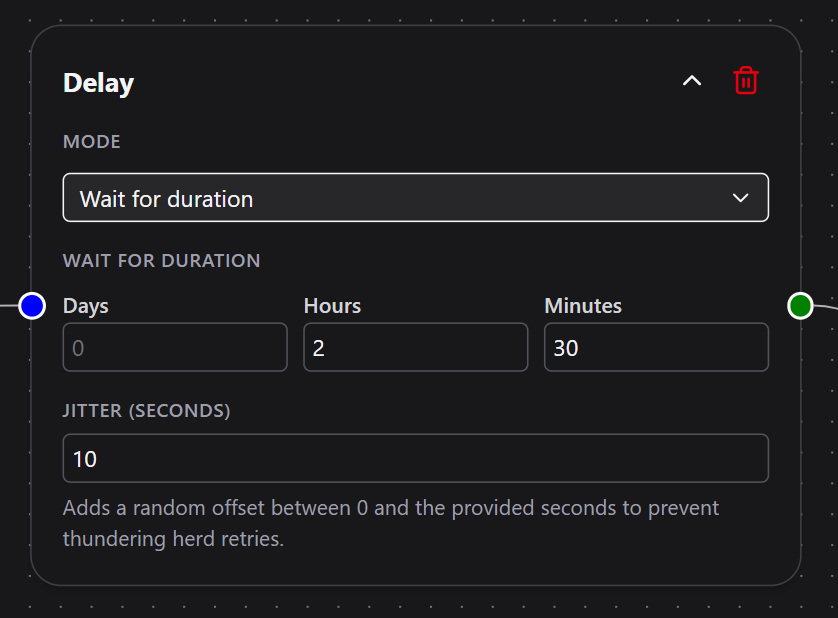
- Wait for Duration — Pause the workflow for a specific number of days, hours, or minutes.
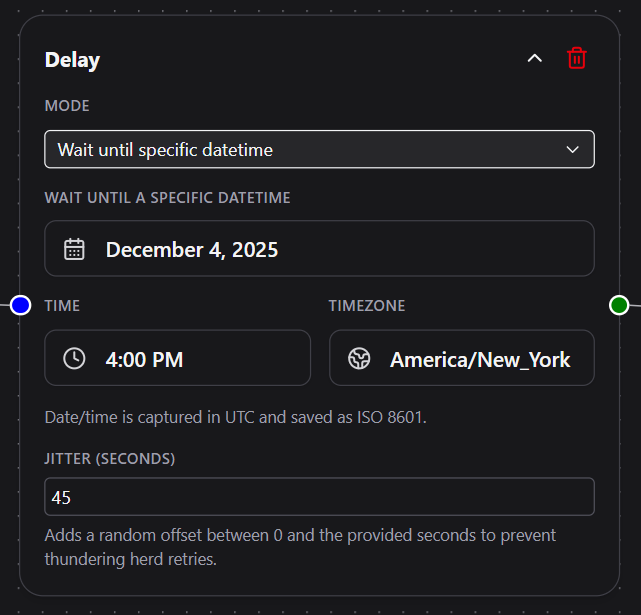
- Wait until specific datetime — Pause until a chosen date and time.
Required
Wait for Duration
Visible only when Wait for Duration is selected.
Days
Number of days to wait.
Must be a non-negative number.
Hours
Number of hours to wait.
Must be a non-negative number.
Minutes
Number of minutes to wait.
Must be a non-negative number.
At least one of these must be greater than zero.
All duration fields default to 0.
Wait until specific datetime
Visible only when Wait until specific datetime is selected.
Date Picker
Choose a calendar date.
Selecting a date is required.
Time (24-hour)
Choose a specific time of day (hours and minutes).
Required when using datetime mode.
Time Zone
Select the time zone in which the datetime should be interpreted.
This ensures the delay resumes at the correct moment regardless of user location or server region.
A complete datetime (date, time, and time zone) is required.
Jitter (Seconds)
Adds a random offset between 0 and the specified number of seconds.
This prevents many delayed runs from resuming at the exact same moment, which can overload external services or your own workflow engine.
Example:
If jitter is set to 60, the workflow will resume at any point within the next 60 seconds after the scheduled time.
Optional
Behavior
- When the workflow reaches this node, DSentr calculates the target resume time based on the selected mode.
- The workflow state is saved and execution pauses.
- The engine schedules a continuation and releases all resources.
- When the scheduled time arrives, the workflow resumes at the next node.
- If jitter is enabled, the system randomly delays the resume time within the configured window.
- If the workflow is edited during the delay, it will resume using the original saved state, not the updated design
Example Use Cases
- Send a follow-up email 24 hours after a user signs up.
- Wait 10 minutes before retrying an external API call.
- Space out Slack or SMS notifications to avoid overwhelming recipients.
- Hold a workflow until the start of a business day in a specific time zone.
- Schedule a phased onboarding sequence: welcome now, next steps tomorrow morning.
Example Configuration
| Field | Example |
|---|---|
| Mode | Wait for Duration |
| Days | 1 |
| Hours | 0 |
| Minutes | 30 |
| Jitter (Seconds) | 45 |
Tips
- Use Wait until specific datetime for scheduled events tied to a calendar date.
- Use Wait for Duration for flexible delays like retries, cool-offs, or spacing notifications.
- Add jitter when many workflows might resume simultaneously, such as after an outage or during batch processing.
- Combine with Conditions or HTTP Request nodes to build robust retry logic.
The Delay node gives workflows precise timing control without holding system resources.
It is the foundation for scheduled, phased, and resilient automation sequences in DSentr.