Condition Node
The Condition Node controls workflow logic.
It evaluates an expression using the current variables in scope and decides which branch of the workflow continues.
This lets you add simple decision-making into otherwise linear workflows.
1. How it works
When a condition node runs, DSentr evaluates the expression you define in its Condition field.
If the expression resolves to true, execution follows the Yes path.
If it resolves to false, it follows the No path.
Both branches continue using the same variable context that existed before the condition was evaluated — no new variables are created, and none are removed or modified.
2. Creating a condition
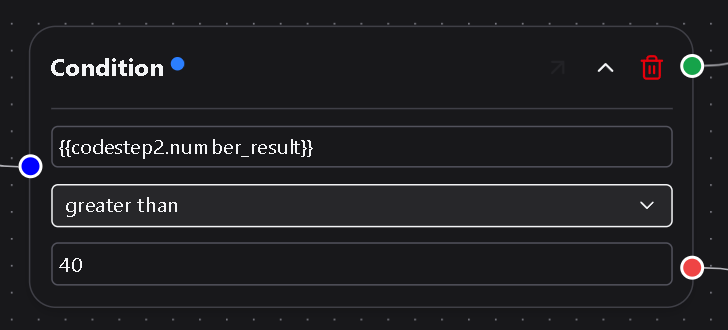
A condition expression can reference any variable available at that point in the workflow.
Use the same templating syntax you use elsewhere in DSentr:
{{trigger.amount}}
You can compare numbers, text, or booleans, and use logical conditions:
equalnot equalgreater thanless thancontains
If a comparison between the field and the comparison value yields true, the the green node output path is followed. Otherwise the comparison is false and the red output path is followed.
3. Inputs and outputs
Condition nodes:
- Do not accept standard inputs.
- Do not produce outputs.
- Pass the existing variables forward unchanged along either the Yes or No branch.
You can place additional action nodes on either branch to define what should happen for each outcome.
4. Editing and testing
- Editing: Click the node on the canvas or use the flyout menu icon on hover to open it in the side panel.
Both editing modes stay in sync. - Testing: Run the workflow manually and inspect the Run Log to see which branch executed and which variables were evaluated.
5. Example use case
A common workflow:
- Trigger: Webhook receives an order payload.
- Condition:
{{trigger.amount > 100}} - Yes branch: Sends a Slack notification for high-value orders.
- No branch: Inserts the order into Google Sheets only.
This setup filters logic within the same workflow without requiring separate automations.
6. Best practices
- Keep expressions simple and readable; use nested logic only when necessary.
- Name condition nodes descriptively (for example, “Check Order Value” instead of “Condition1”).
- Use multiple condition nodes for layered logic instead of chaining complex expressions.
- Review run logs to confirm that branch behavior matches expectations.
The Condition Node adds flexibility and control to workflows — letting you decide what happens next based on real-time data rather than fixed rules.